Team & Roles
Who sees and does what,
down to the AI
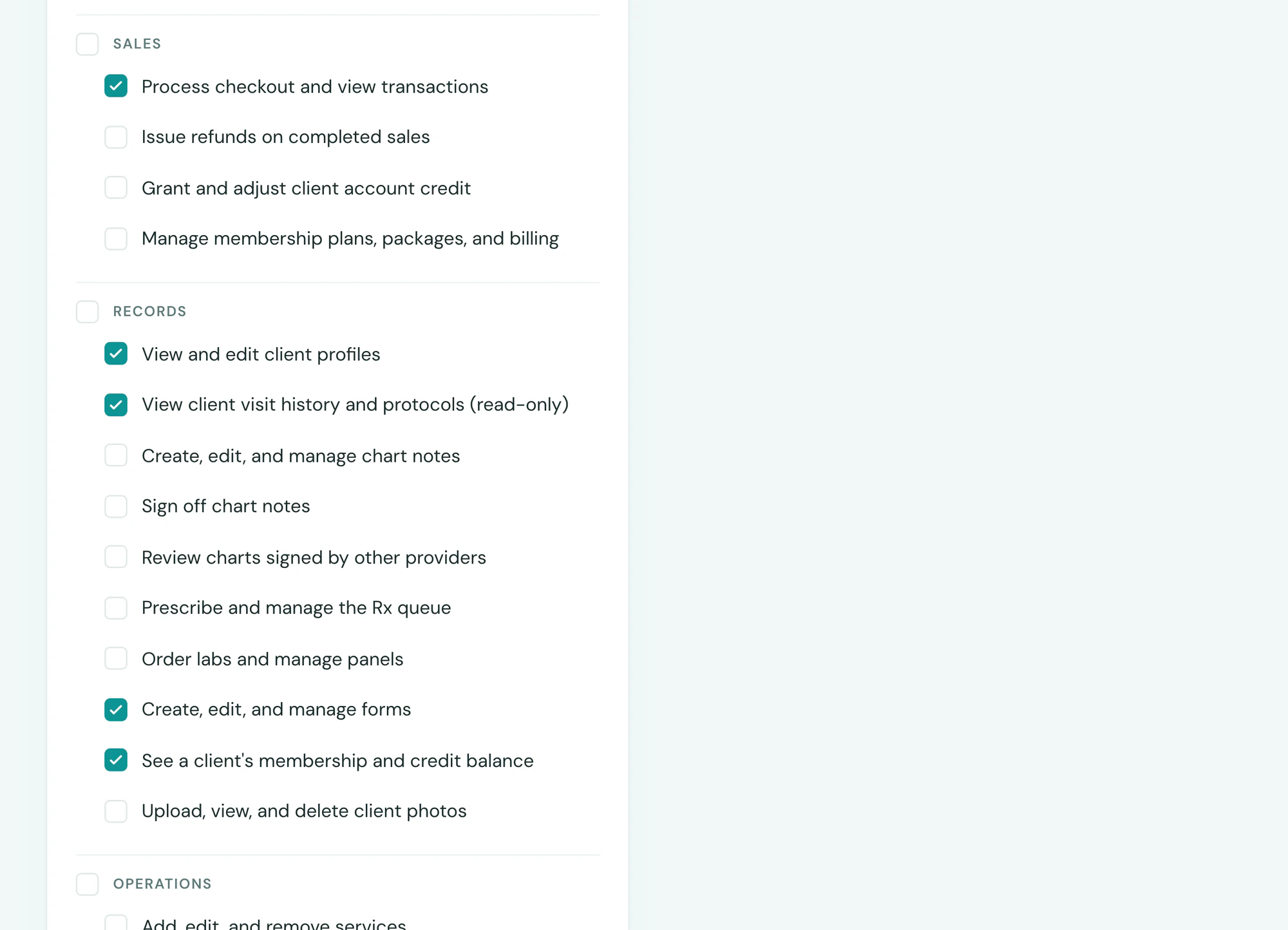
Decide what every person on your team can see and do, from refunds to chart notes. Each login gets a role, and the AI follows the same rules.


Roles
Every login, only what the job needs
Tepali’s roles decide what each person at your medspa can see and do, from the calendar to chart notes, refunds and reports.
- Five starter roles, or build your own
- Each permission is one specific action
- The AI acts with the asker’s permissions
Employees
Set up a new hire in one sentence
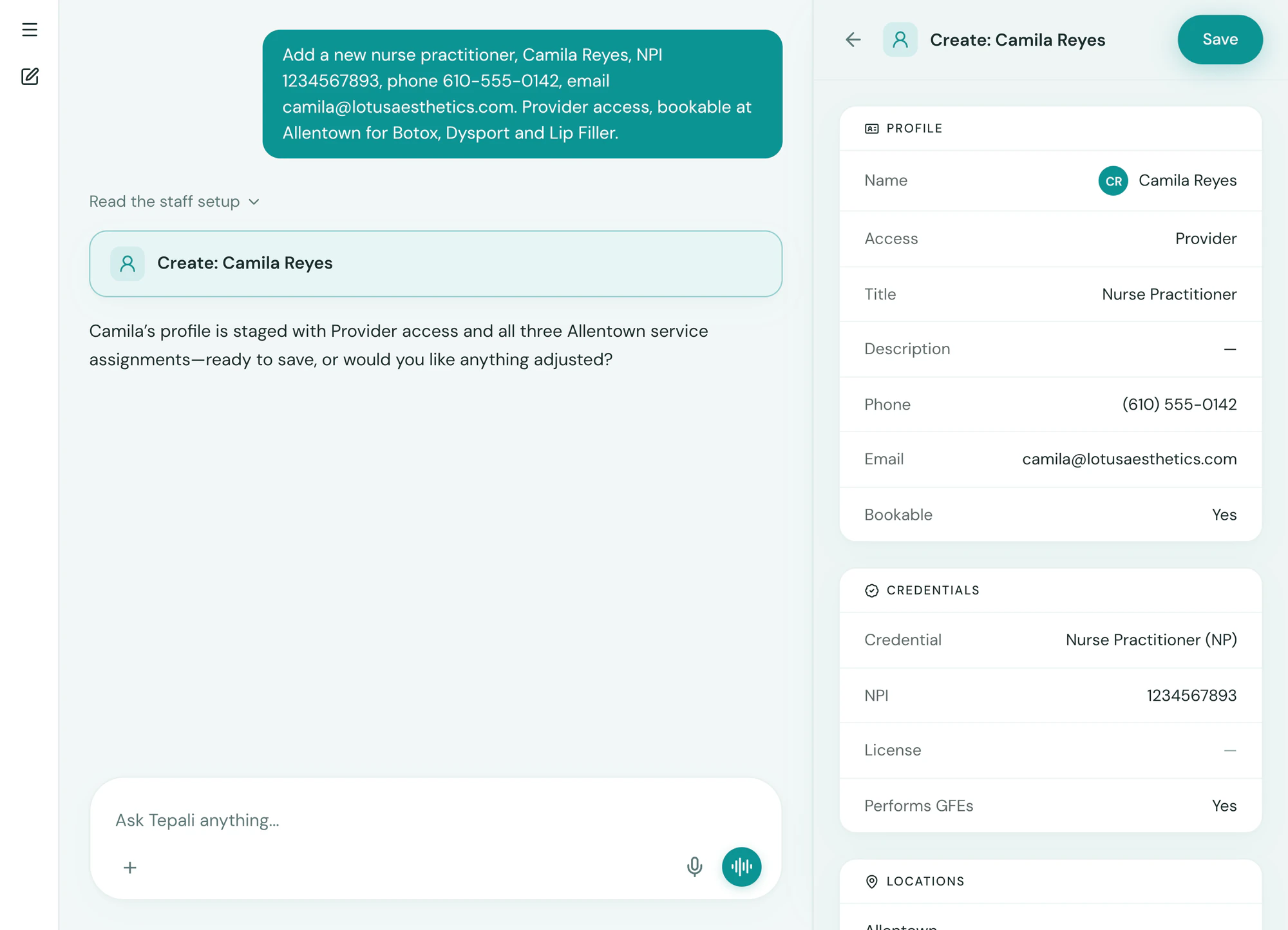
Describe a new employee to the AI Operator and Tepali drafts their record, ready for you to save.
- Role, locations and services on one page
- Bookable, or behind the scenes
- Credentials and NPI on file
Accountability
Who did what, on the record
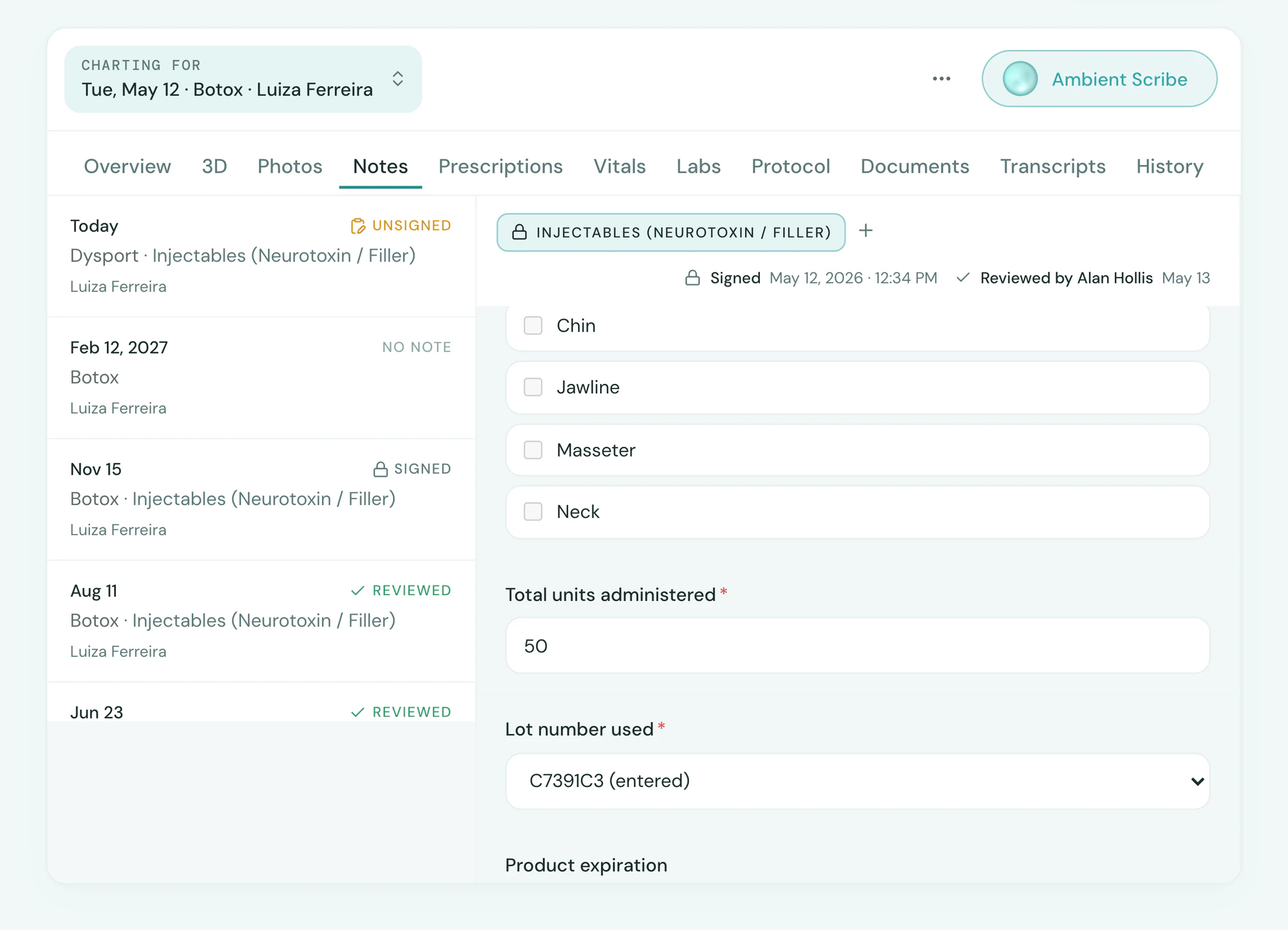
Every chart note, sale, refund and approval in Tepali carries the name of the person who did it.
- Record views and edits in an access log
- Alerts sent by role, not to everyone
- You can’t lock yourself out of your own account
Frequently asked questions
Book a demoWhat are roles and permissions in a medspa EMR?
Tepali’s Team & Roles is where you add employees and decide what each one can see and do in your medspa EMR. Every login has a role, and the role sets the pages, actions and client records that person can open. The same permissions limit what the AI will do for them.
Can I control what the front desk sees?
Yes. The built-in Front Desk role covers the calendar, inbox, client profiles, forms and checkout, and leaves out chart notes, sign-off and reports. You can switch any single permission on or off.
Which roles come built in?
Five: System Administrator, Manager, Provider, Front Desk and Billing. Manager has everything except roles, pay and integrations. Billing covers checkout, refunds, credit, memberships and reports.
Can I make custom roles?
Yes. Create a new role or copy a built-in one, then tick the permissions it needs. They are grouped by area, such as Schedule, Sales, Records and Reports, and changes save as you go.
Do permissions apply to the AI?
Yes. The AI Operator acts with the permissions of whoever is asking. If a front desk login can’t cancel a membership or open a chart note on the page, it can’t do it by asking the AI either.
Can I see who did what?
Yes. Chart notes, sales, refunds and approvals carry the name of the person who did them. Views and edits of client records are written to an access log.
What happens when an employee leaves?
Remove their login and their access to the calendar, charts, inbox and staff app ends. Their name stays on the notes they signed and the sales they rang up.
Are roles included?
Yes. Team and roles are part of every plan, with no per-seat charge.
Decide who sees what, on one screen